What happens to custom WooCommerce plugins when you move to Shopify
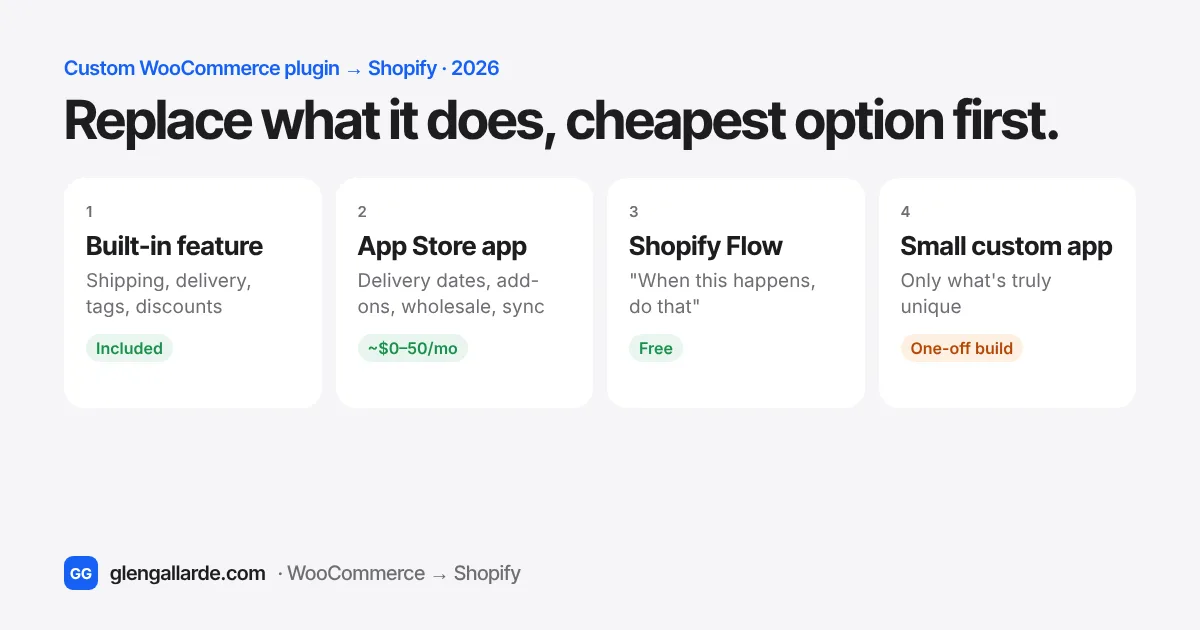
A custom WooCommerce plugin doesn't move to Shopify, because Shopify doesn't run WordPress plugins. You replace what it does. Work out its actual jobs first, then replace each job with the cheapest option that fits: a built-in Shopify feature, an app from the Shopify App Store, a free Shopify Flow automation, or a small custom app. Most custom plugins turn out to be two or three ordinary jobs, and only the truly unique part needs custom code. Changes to the checkout itself, and custom apps that change discounts or the cart, need Shopify Plus.
Ask a WooCommerce owner what's stopping them from moving to Shopify and you'll often hear "we have a custom plugin". Somebody built it years ago to handle fulfilment, delivery slots, custom pricing or a link to another system. It works, nobody quite remembers how, and the developer may be long gone.
It feels like the thing that makes a move impossible. In practice it's usually the part of the project that needs the most thought, not the most money. Here's how I approach it.
Step 1: Find out what the plugin really does
Don't start with "how do we rebuild this plugin?" Start with "what jobs does it do for us every day?" A plugin built over several years often does five things, of which two still matter.
- Ask the people who use it. Whoever packs orders or answers customer emails knows which screens and buttons they actually press.
- Find the original developer or the code. The plugin lives in
wp-content/pluginson your server. Even without the developer, a WordPress developer can read the code and list what it hooks into: checkout, order statuses, emails, product pages or an outside system. - Write each job as one plain sentence. For example: "Orders for local delivery get a delivery date and go into a daily packing list." "Wholesale customers see different prices." "Paid orders are sent to our warehouse system."
- Mark what's dead. Features for a service you stopped using, or a report nobody opens, don't need replacing.
That list of sentences is the real spec. It's also the most useful thing you can hand to anyone quoting the migration.
Step 2: The four ways to replace it
Go through the jobs one by one and use the first option that fits. Each step down the list costs more to build and more to look after.
| Option | Good for | Cost |
|---|---|---|
| 1. Built-in Shopify feature | Shipping rules, local delivery and pickup, order tags, customer tags, discounts, gift cards, abandoned cart emails, basic reports | Included in your plan |
| 2. An app from the Shopify App Store | Delivery dates, product options and add-ons, wholesale pricing, subscriptions, reviews, accounting sync, warehouse and shipping connections | Usually $0 to $50 a month per app |
| 3. Shopify Flow automation | "When this happens, do that": tag orders, alert staff, hold risky orders, update stock, send data to another app | Free on every plan |
| 4. A small custom app | The part that's truly unique to your business, such as a special packing list or a link to an in-house system | A one-off build, plus small hosting costs and upkeep |
The mistake I see most is jumping straight to option 4 and rebuilding the whole plugin as a Shopify app. That's expensive, and it recreates the thing owners are often trying to escape: custom code only one developer understands. A mix of options 1 to 3, with a small custom app only where you really need it, is cheaper to build, cheaper to run and easier for your team to manage.
Common custom plugins and what replaces them
| What the custom plugin does | What usually replaces it on Shopify |
|---|---|
| Order fulfilment and packing lists | Order tags and saved order views, an order printer app, or your shipping or warehouse software's Shopify integration. A small custom app only if the packing logic is truly unusual. |
| Delivery dates and time slots | Built-in local delivery and pickup, plus a delivery date app for the calendar at checkout |
| Minimum order value or quantity | A cart rules or order limits app. Hard limits at checkout on Shopify Plus. |
| Product add-ons, engraving or gift options | A product options app, or Shopify's own variants and line item properties |
| Wholesale or customer-specific pricing | A wholesale app, or B2B catalogues on Shopify Plus |
| Sending orders to another system | An existing Shopify connector for that system, a Flow automation, or a small custom app using Shopify's webhooks |
| Custom fields on products | Metafields, which are built in and show up in the theme editor |
| Perishable or zone-based shipping rules | Shipping profiles and zones, plus a shipping rules app for things like "ice packs only Monday to Wednesday" |
For off-the-shelf WooCommerce plugins, my free plugin to app finder lists the Shopify replacement for each one.
What needs Shopify Plus
Most replacements work on any Shopify plan. A few don't, and it's better to know before you plan the build:
- Changing the checkout pages themselves, such as adding fields or blocks to the information, shipping or payment steps, needs Plus. The thank you and order status pages can be customised on every plan.
- Custom apps that use Shopify Functions, the tool for custom discounts, cart rules, delivery and payment options, only run on Plus stores. Apps from the App Store that use Functions work on every plan, which is why an existing app is often the smarter route.
- One custom app shared across several stores is a Plus feature. On other plans it's installed on one store at a time.
If a job really needs one of these and you're not on Plus, look for an App Store app that does it. Those apps can use features a custom app on your own store can't.
Keeping the cost down
- Replace jobs, not code. Quote from the list of plain sentences, not from the old plugin.
- Prefer apps with a free trial. You can test them on your new Shopify store before you commit, and they're maintained by someone else.
- Keep custom code small. If a custom app is needed, give it one job. Small apps are cheaper to build and to hand over.
- Own what you pay for. Make sure any custom app is built under your store or your own developer account, with the code handed to you.
- Test it with real orders before launch. Run your busiest order types through the new setup on the Shopify store while WooCommerce is still live.
Before you pick someone to do it, ask how they'd replace your plugin and what it will cost to run each month, not just to build. The guide to hiring a migration expert has the rest of the questions.
Questions
Can I install my WooCommerce plugin on Shopify?
No. Shopify doesn't run WordPress or its plugins. You replace what the plugin does with Shopify's built-in features, an app from the Shopify App Store, a Shopify Flow automation, or a small custom app.
How much does it cost to replace a custom WooCommerce plugin?
It depends on what the plugin does. Often most of its jobs are covered by built-in features and apps costing $0 to $50 a month, and only a small part needs custom work. Rebuilding the whole plugin as a custom app is the most expensive route and is rarely needed.
What if I don't know what my custom plugin does?
Ask the staff who use it which screens they rely on, then have a developer read the plugin's code in wp-content/plugins and list what it hooks into. That gives you a plain list of jobs to replace, even if the original developer is gone.
Do I need Shopify Plus for custom features?
Not usually. Apps from the Shopify App Store, Shopify Flow and custom apps that use the standard Admin API work on every plan. Changes to the checkout steps, and custom apps using Shopify Functions, need Plus.
Can the same custom app run on two Shopify stores?
On Shopify Plus, one custom app can be installed on several stores in the same organization. On other plans, it's set up separately on each store. See the guide to moving two stores in one project.
Sources
- Shopify developer docs, about Shopify Functions (custom apps with Functions need Plus) and app distribution methods
- Shopify developer changelog, install custom apps on multiple Shopify Plus stores
- Shopify changelog, Shopify Flow available on the Basic plan
- Shopify Help Center, checkout settings and metafields