Shopify 301 redirects after leaving WooCommerce
Shopify has a built-in URL redirects tool that creates permanent 301 redirects, one old path to one new path, up to 100,000 per store. You can add them one by one or import a CSV with two columns, "Redirect from" and "Redirect to". The catch: a redirect only fires when nothing else lives at the old address, and a few paths, including /shop and /cart, can't be redirected at all.
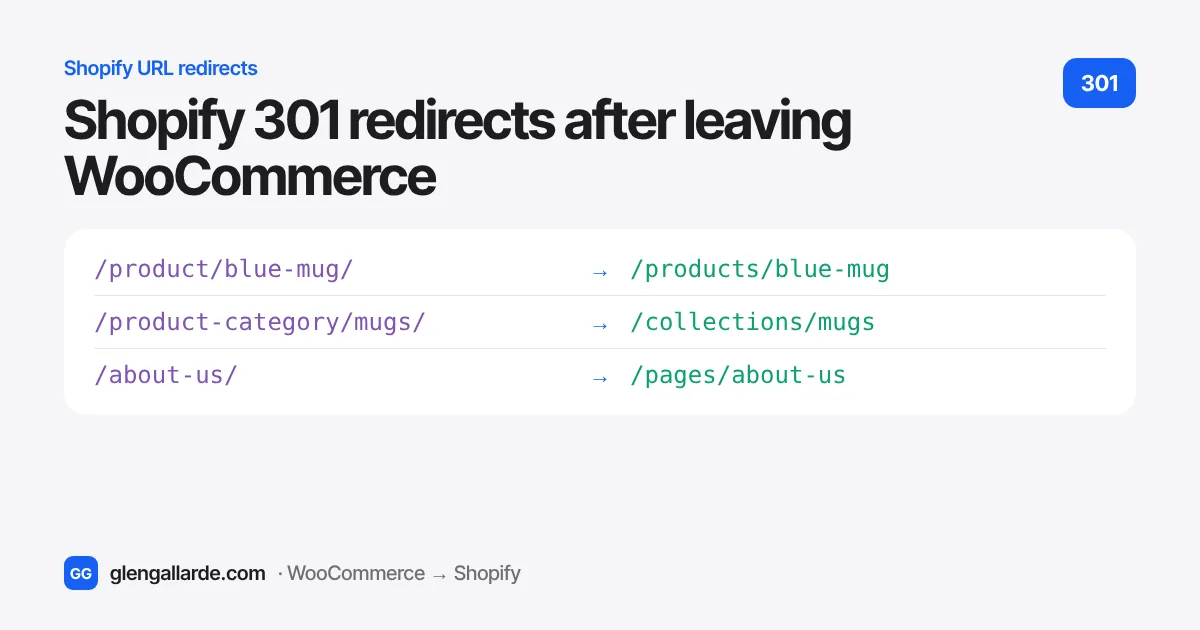
When I audit a store that lost Google traffic after moving to Shopify, the cause is almost always the same. It isn't the theme or the platform. It's redirects that are missing, pointing to the wrong place, or quietly not working.
Shopify's redirect tool is simple, which is mostly a good thing. But it has a few rules that aren't obvious until something goes wrong, and most guides skip them. This one doesn't.
Why redirects decide whether you keep your rankings
WooCommerce and Shopify use different URL patterns. A product at /product/blue-mug/ on WooCommerce lives at /products/blue-mug on Shopify. Same product, different address.
Google has your old addresses saved, and other websites link to them. Without a redirect, every one of those visits lands on "page not found". Google slowly drops those pages, and the rankings you built over years go with them.
A 301 redirect tells browsers and Google that a page has moved for good, and where to. Google then passes the old page's ranking signals to the new one. Done properly, most stores see a small dip for 2 to 3 weeks and then recover.
How Shopify URL redirects work
You'll find them in your Shopify admin under Content, then Menus, then URL redirects (or just search the admin for "URL redirects"). The basics:
- Every redirect is a 301. Shopify's built-in tool doesn't do temporary 302 redirects, and for a migration you don't want them anyway.
- One to one. Each row sends one old path to one new path. There are no wildcard rules like
/product/*, so a store with 3,000 products needs 3,000 rows. That's normal, and a spreadsheet makes it quick. - Up to 100,000 redirects per store, or 20 million on Shopify Plus. Very few stores get anywhere near that.
- The "Redirect from" is a path, like
/product/blue-mug, without your domain. The "Redirect to" can be a path on your store or a full URL somewhere else. - They work straight away once saved.
- They cover your international subfolders. If you sell in several markets with Shopify Markets, a redirect from
/old-pagealso applies to versions like/en-ca/old-page.
When a Shopify redirect won't fire
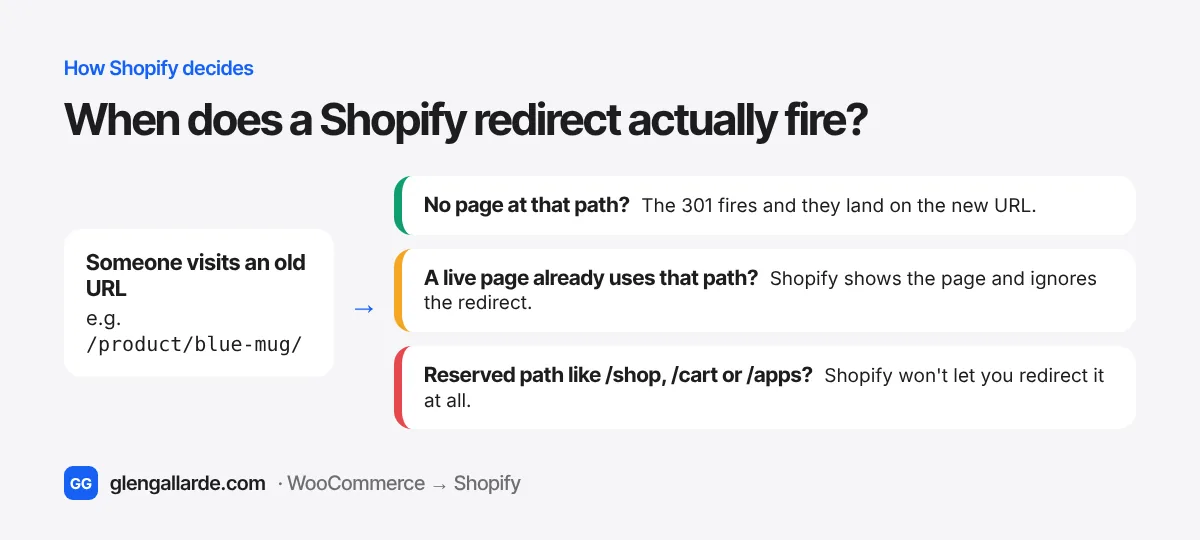
This is the part that trips people up. Shopify only uses a redirect when the old address would otherwise show "page not found".
1. A live page already uses that address
If a page, product or collection exists at the old path, Shopify shows it and ignores your redirect. On a fresh migration that's rare, because Shopify's paths look nothing like WooCommerce's. It bites later, when someone creates a new page or collection at an address that already had a redirect, and the redirect quietly stops working.
The flip side is useful. Set a product to Draft, or hide a collection, and its URL returns "not found", so a redirect from it starts working. One warning from Shopify's own documentation: make a hidden collection visible again and Shopify deletes the redirect you made for it.
2. The path is one Shopify reserves
Shopify won't redirect paths that start with /apps, /application, /cart, /carts, /orders, /services or /shop, and you can't redirect its own fixed pages like /collections/all.
That /shop one matters for WooCommerce stores. WooCommerce's main shop page lives at /shop/ by default, and some stores put their product URLs under it too, like /shop/blue-mug/. Before you build hundreds of rows for those, add one test redirect from a /shop/ URL in your Shopify admin and check whether it saves and works. If it doesn't, make sure the internal links, menus and ads you control point straight to the new URLs, and check Search Console for those pages after launch.
3. The URL has a query string
Shopify says URLs with query strings (anything after a ?) may not redirect as expected. WooCommerce makes plenty of them, like ?add-to-cart=123 or ?orderby=price. Leave them out. Google treats them as versions of the main page, and redirecting the main page covers it.
4. Tag-filtered collection URLs
Addresses like /collections/mugs/gift can't be the "from" side of a redirect. They're fine as the "to" side, which is handy for old WooCommerce product tag pages.
The WooCommerce to Shopify URL map
These are WooCommerce's default URL patterns and where each one should point on Shopify. Check a few real URLs from your store, because permalink settings can change them.
| Page type | Redirect from (WooCommerce) | Redirect to (Shopify) |
|---|---|---|
| Product | /product/blue-mug/ | /products/blue-mug |
| Category | /product-category/mugs/ | /collections/mugs |
| Sub-category | /product-category/mugs/travel/ | /collections/travel |
| Product tag | /product-tag/gift/ | /collections/all/gift, or a collection |
| Page | /about-us/ | /pages/about-us |
| Blog post | /my-post/ or /2024/05/my-post/ | /blogs/news/my-post |
| Blog category | /category/recipes/ | /blogs/news/tagged/recipes |
| Account | /my-account/ | /account |
| Shop page | /shop/ | Reserved on Shopify. Test it, as above |
Two habits make this far easier. Keep the same slugs (Shopify calls them "handles"), so blue-mug stays blue-mug and each redirect is a pattern swap. And map categories to collections one to one, so every old category has an obvious new home. The full move, including what to record before you start, is in the SEO migration guide.
Building the redirect CSV
Shopify imports a plain CSV file with exactly two column headings: Redirect from and Redirect to. The headings stay in English even if your admin is in another language.
- Get every old URL. Your WordPress sitemap is the quickest source: try
/sitemap_index.xml(Yoast or Rank Math) or/wp-sitemap.xml. Add your top pages from Search Console too, since some pages that still get traffic aren't in the sitemap. - Turn each URL into a path. Drop the domain, so
yourstore.com/product/blue-mug/becomes/product/blue-mug. - Write the new path next to it, using the map above.
- Skip what doesn't need a redirect: the homepage,
/wp-admin/, feeds,/cart/and/checkout/, and query string URLs. - Save it as CSV in UTF-8. If the same "from" path appears twice, the later row wins, so remove duplicates.
You don't have to do this by hand. Paste your sitemap into the free WooCommerce to Shopify redirect generator and it builds the CSV in your browser, sorted by page type, with anything unusual flagged to check yourself.
Importing redirects into Shopify
- In your Shopify admin, open Content, then Menus, then URL redirects.
- Click Import. If you don't see it, create one redirect by hand first and the option appears.
- Add your CSV file and click Upload file. Shopify shows a preview of what it found.
- Click Import redirects. Large files take a minute or two.
When should you do it? The redirects can go in while the store is still password-protected, so they're ready the moment you switch the domain. Just remember that any product or page that exists at an old path will win over the redirect.
How to test your redirects
- Spot-check 20 or so old URLs in a private browser window, including your 10 biggest pages from Search Console. Each should land on the right page, not the homepage or a 404.
- Try each URL with and without the trailing slash, since WooCommerce links usually end in
/. - Check Search Console every day for the first week after launch. The Pages report lists URLs Google tried and couldn't find. Add a redirect for each one.
- Leave the redirects in place for good. They cost nothing, and old links keep sending visitors for years.
One thing to know before you test: browsers and Google remember 301 redirects. If you set one up wrong and fix it, your own browser may keep sending you to the old destination for a while. A private window avoids that.
The redirect mistakes that cost the most traffic
- Sending everything to the homepage. It's tempting when there are thousands of URLs. Google treats it like a missing page, so you lose the ranking anyway. Point each URL at its closest match.
- Only redirecting products. Categories and blog posts often bring in more search traffic than products do. Redirect them too.
- Redirect chains. If an old URL already redirected somewhere on WooCommerce, send it straight to its final Shopify address, not through the middle step.
- Changing slugs during the move. "Tidying up" product handles while migrating multiplies the work and the risk. Do it later, if at all.
- Forgetting images and PDFs. If Google Images or other sites send traffic to your WooCommerce images or downloads, redirect the important ones to their new pages.
Questions
Does Shopify use 301 or 302 redirects?
Shopify's built-in URL redirects are always permanent 301 redirects. That's the right type for a migration, because it tells Google to pass the old page's rankings to the new one.
How many redirects can a Shopify store have?
Up to 100,000 per store, or up to 20 million on Shopify Plus. Each one is a single old path to a single new path.
Why isn't my Shopify redirect working?
The usual reasons: a live page, product or collection still exists at the old path; the path is reserved (like /shop, /cart or /apps); there's a typo; or your browser has cached an earlier redirect. Test in a private window and check that the old path really shows "page not found" without the redirect.
Can Shopify redirect with wildcards?
Not with the built-in tool. Each redirect is one to one, so you list every URL. A spreadsheet or the redirect generator turns a sitemap into the full list in minutes.
Do redirects hurt SEO?
No. A 301 to the right page keeps almost all of the old page's value. What hurts SEO is the opposite: old URLs that return "page not found", or everything redirected to the homepage.
How long should I keep the redirects?
Forever. They're free, they don't slow your store down, and links from old emails, social posts and other websites will keep arriving for years.